Batch Convert WAV Files to Mono on Mac
When you need to convert an entire sample library from stereo to mono, doing it one file at a time is not practical. Here is how to batch convert multiple WAV files to mono on macOS in seconds.
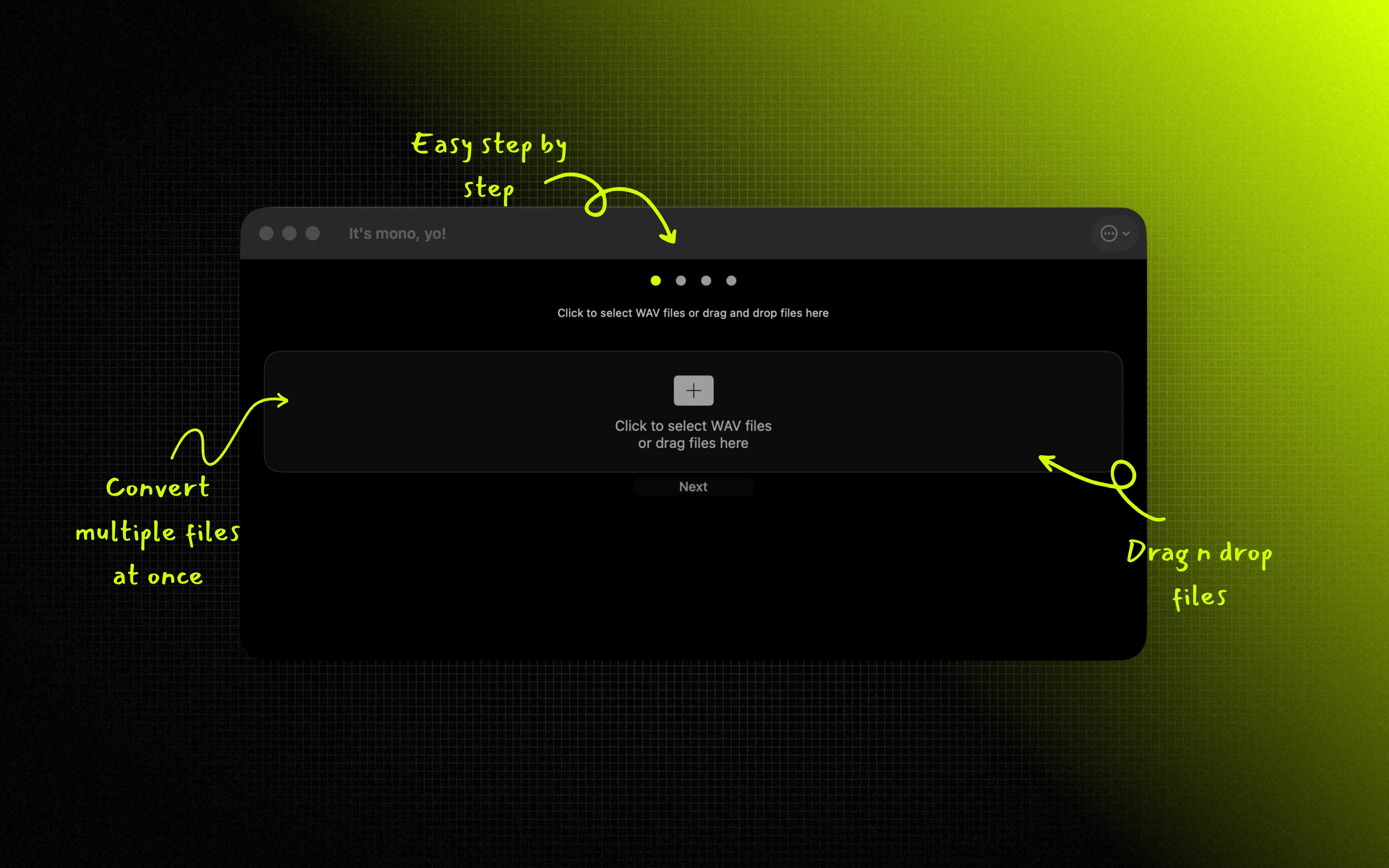
How Batch Conversion Works
It's mono, yo! supports batch conversion of unlimited WAV and AIFF files at once. Drop in individual files or a whole folder, and it converts everything inside while recreating your folder structure in the output. The process is simple:
- Open the app and drag in all your WAV files (or use ⌘O to select multiple files)
- The app shows each file with its format info (sample rate, bit depth, stereo/mono)
- Click "Next" and select your output folder
- Watch the real-time progress as each file is converted
What Gets Preserved
During batch conversion, every file keeps its original audio quality:
- Sample rate: 44.1 kHz stays 44.1 kHz, 48 kHz stays 48 kHz, etc.
- Bit depth: 16-bit, 24-bit, and 32-bit files all maintain their original depth
- File names: each output keeps its name with a ".Mono" suffix, and existing files are auto-renamed so nothing is ever overwritten
- Folder structure: drop a folder and the output mirrors its subfolders, so a whole sample pack stays organized
- Audio content: both channels are combined with a proper summed downmix, not just the left channel, so the mono file keeps the full sound
When You Need Batch Conversion
Batch conversion is essential when:
- Preparing a complete sample pack for Erica Synths Sample Drum
- Loading samples onto Eurorack sampler modules
- Converting an entire folder of recordings to mono
- Processing downloaded sample packs that come in stereo format
Error Handling
If a file fails during batch conversion (for example, if it is corrupted or not a valid WAV file), the app continues converting the remaining files. Failed files are marked with an error status and their reason is shown, so you know exactly which ones to re-add. Your successfully converted files are not affected.
Tips for Efficient Batch Processing
- There is no file-count limit — drop an entire library or sample pack in one go
- Output directly to your SD card to save a copy step
- The app shows file info before conversion — check that your files are actually stereo before converting
- Original files are never modified, so you can safely experiment
Batch Convert Your Samples
Unlimited files at once. Available on the Mac App Store.